To sell bonds via NSDL Speed-e, you must have registration done on NSDL Speed-e. Click here to know the registration process.
After registering for SPEED-e, you must complete the following steps to submit delivery instructions to your account.
Step 1: Login to SPEED-e
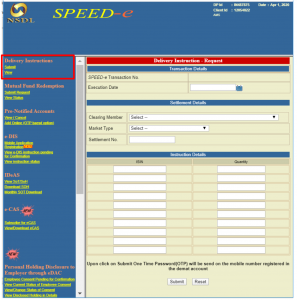
Login to your SPEED-e account using the User ID and password that you created while registering on SPEED-e as a password user, Smart Card, or e-Token user. After logging into your SPEED-e account, locate the ‘Delivery Instructions‘ section in the left sidebar menu. Within ‘Delivery Instructions‘, select the ‘Submit’ link, as demonstrated in the image provided.
Step 2: Complete The Delivery Instruction
After clicking ‘Submit’, you will be taken to the ‘Delivery Instruction – Request’ page. Here, you must fill in the following details:
-
Execution Date
In the ‘Execution Date’ field under ‘Transaction Details’, enter the date on which the shares should be debited from your Demat Account. This is the actual date when the share transfer will take place.
-
Clearing Member
In the ‘Clearing Member’ field under ‘Settlement Details’, choose the Pre-Notified account of the Clearing Member to whom you want to transfer the shares.
A Pre-Notified account refers to the Clearing Member Business Partner ID (CM-BP-ID) that you added earlier while registering on SPEED-e. This ensures that shares are transferred only to approved Clearing Members.
-
Market Type
Under ‘Settlement Details’, fill in the ‘Market Type’.
Market Type indicates the segment you are trading in – such as equity, commodities, derivatives, or currencies. Stock exchanges use a two-character code to represent each market type, so enter the correct code for the segment where your trade is executed.
-
Settlement Number
In the ‘Settlement No’ field under ‘Settlement Details’, enter the Settlement Number for the trade.
Note that – Every settlement number identifies the specific trading period for that market segment. Each settlement period has a defined trade start day, trade end day, pay-in day, and pay-out day. The stock exchanges divide 12 months (one year, typically a calendar year, into several settlement periods and allocate a settlement number for each settlement period.
So, make sure you enter the correct Settlement Number for the period in which your securities are being transferred.
-
ISIN
In the ‘ISIN’ fields under ‘Instruction Details’, enter the ISIN codes of the securities you want to transfer. An ISIN is a 12-character unique identifier assigned to every security in the depository system.
Next, in the ‘Quantity’ field beside each ISIN, enter the number of shares you wish to transfer.
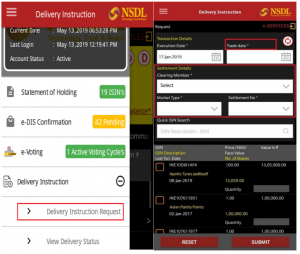
If you are using the NSDL SPEED-e mobile app, tap on ‘Delivery Instruction Request’ (as shown in the app screen) to begin submitting your delivery instructions to your broker.
Step 3: Complete the OTP Verification
After entering all the required details, click ‘Submit’ at the bottom of the page. You will then receive an OTP on your registered mobile number linked to your Demat Account.
Enter this OTP to confirm the request. Once the OTP is verified, the transaction will be processed, and you will see a ‘Transaction Successful’ message on your screen.
Step 4: Using the Enhanced e-DIS Facility
To reduce the effort of manually entering instructions for Clearing Members on SPEED-e, NSDL has upgraded the platform for password-based users. This enhancement allows you to confirm pay-in instructions that are uploaded directly by your pre-notified Clearing Members.
When you activate e-DIS for a Pre-Notified Clearing Member account, the Clearing Member can upload the pay-in instruction on your behalf. You simply need to review and confirm it.
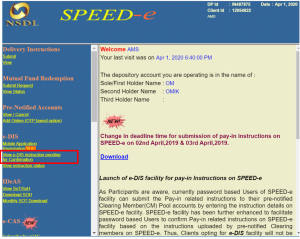
You will receive an SMS alert on your registered mobile number whenever an e-DIS instruction is waiting for your confirmation. You can also check any pending e-DIS requests by selecting ‘View e-DIS instruction pending for Confirmation’ under the ‘e-DIS’ section in the left menu of your SPEED-e account.
Disclaimer: This content is intended solely for informational and educational purposes to explain the bond selling process. It does not constitute investment advice or a recommendation to buy or sell any bond or security. Procedures and requirements may change from time to time. Investors are advised to verify details with their Depository Participant and read all relevant documents carefully before taking any action.
Need Help? Contact Us
If you have any doubts or need assistance while completing these steps, you can always reach out to us. Our support team will guide you through the process and help you complete your transfer without any hassle.